Before You Start
- Create a System Restore Point.
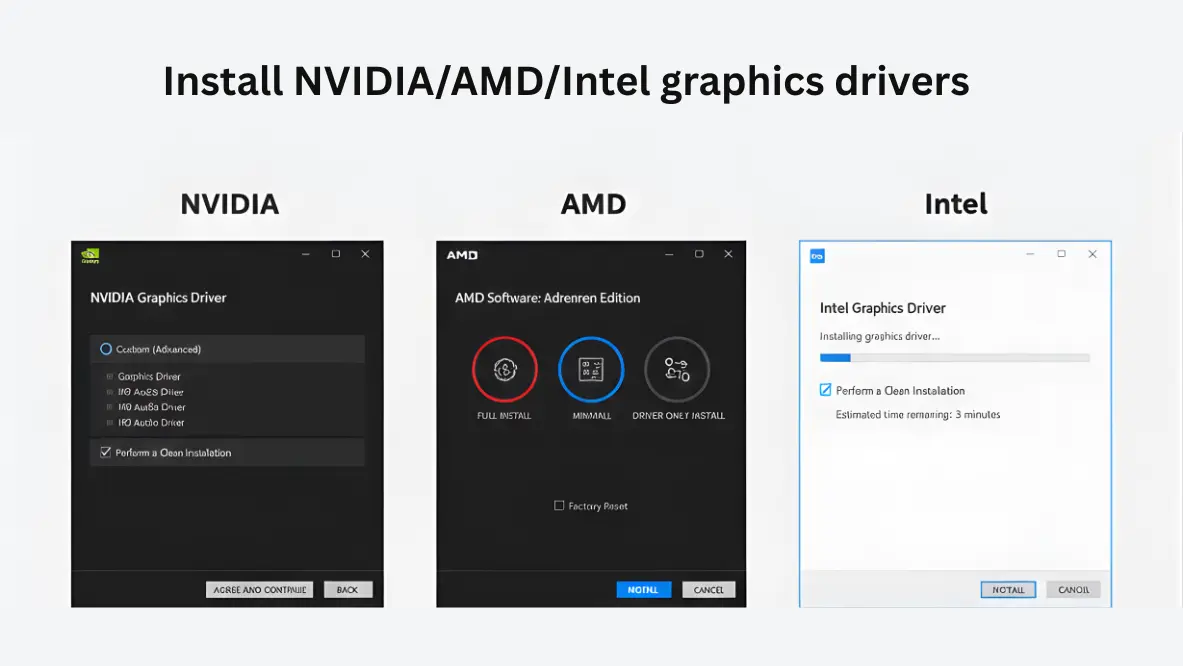
- Download your new GPU driver (NVIDIA/AMD/Intel) but do not install it yet.
- Knowing your Windows password (PIN might not work in Safe Mode) is recommended.
- Disconnect from the Internet to prevent Windows Update from interfering.
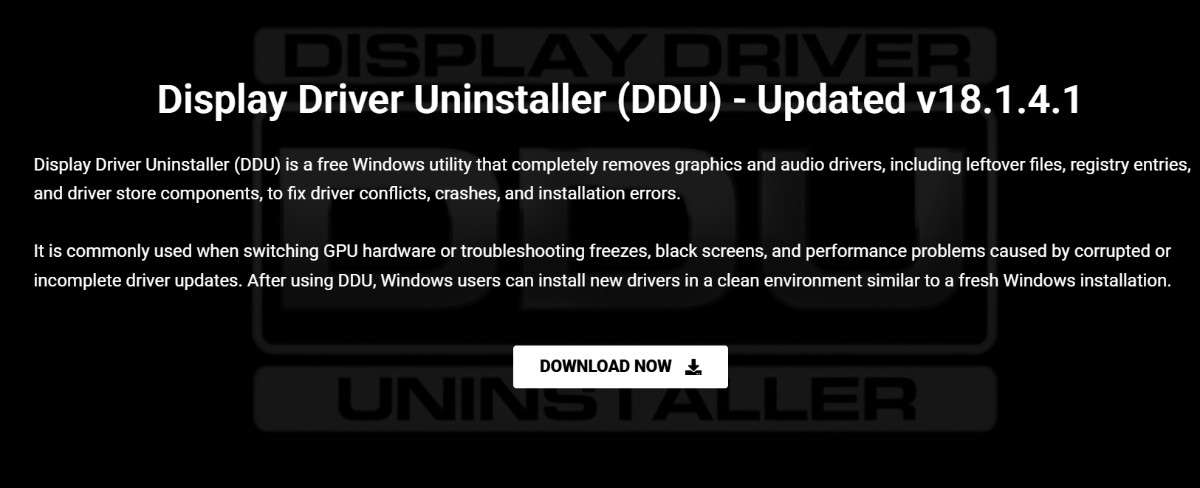
Download DDU
Download the latest version of DDU from the official download page using the main download button.
Download Your GPU or Audio Driver
Go to the official NVIDIA, AMD, Intel, or audio vendor website and download the correct driver for your device. Do not install it yet; just save the installer.
Disconnect Network Connections
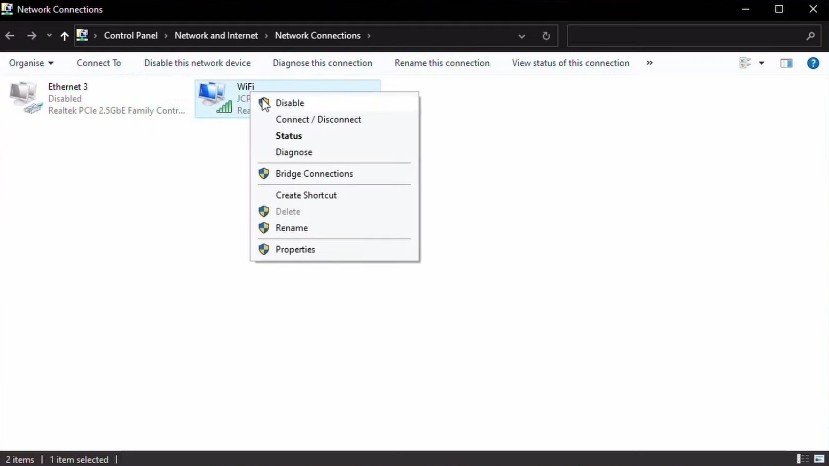
This is crucial. Windows Update will try to install a generic driver the moment you uninstall your current one. Unplug your Ethernet cable or disable Wi-Fi to prevent this.
Boot into Safe Mode
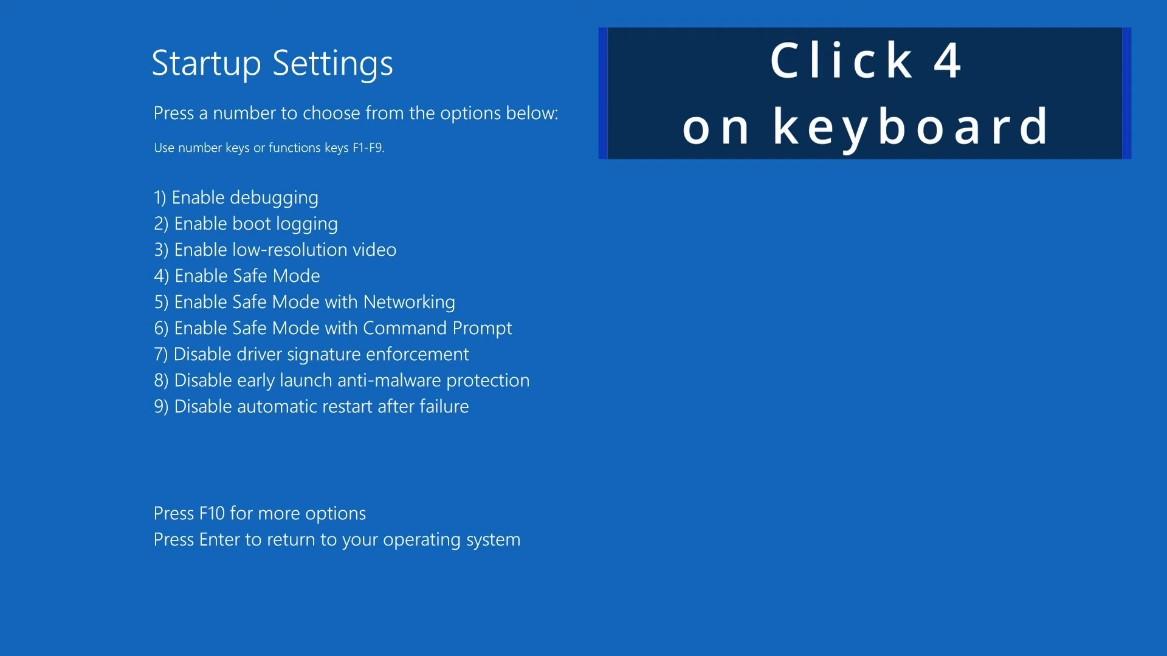
While DDU can work in Normal Mode, Safe Mode is the only way to guarantee a 100% clean removal. You can hold Shift while clicking Restart in the Start Menu to access startup options.
Extract and Launch DDU
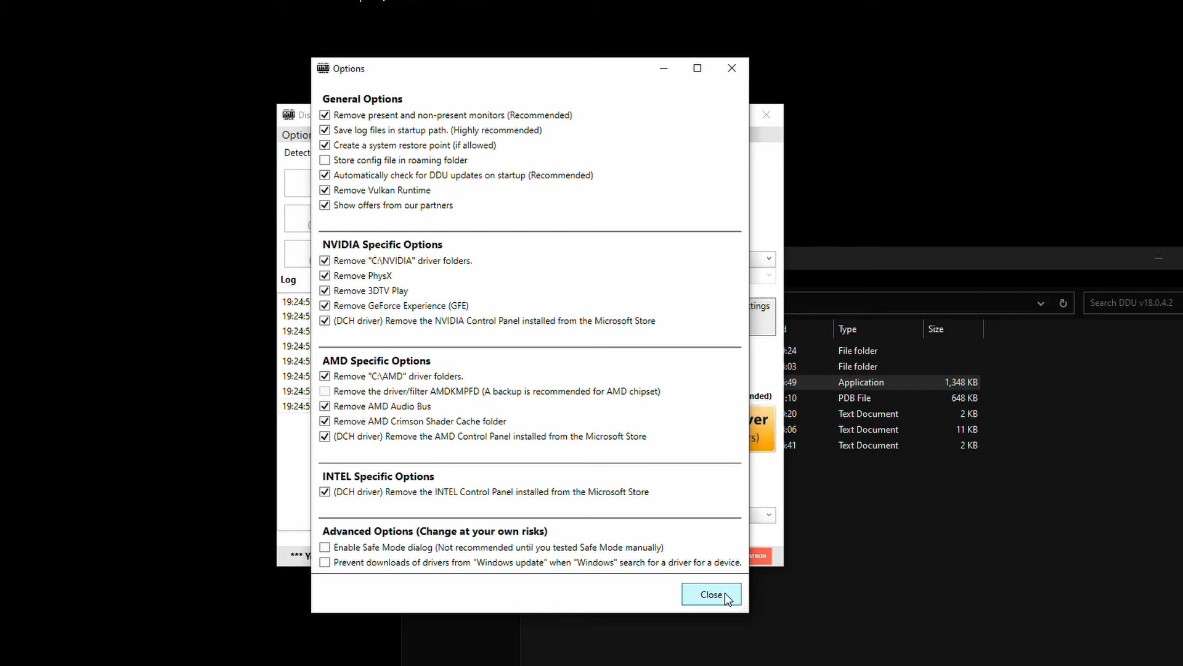
Extract the DDU archive to a folder you can easily access, then run Display Driver Uninstaller.exe to open the tool.
Select Device and Cleanup Option
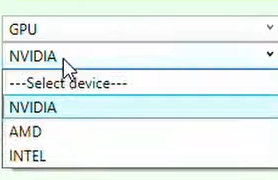
Inside DDU, select your device type (for example GPU) and vendor (NVIDIA, AMD, or Intel), then choose the cleanup action such as Clean and restart to remove the drivers safely.
Install New Drivers
Once your PC restarts into Normal Mode, install the driver you downloaded in Step 2. Follow the installer prompts. After installation, you can reconnect to the internet.